Dashboard
The Dashboard is your Nexus home base — a real-time snapshot of your entire fleet.
Fleet Stats
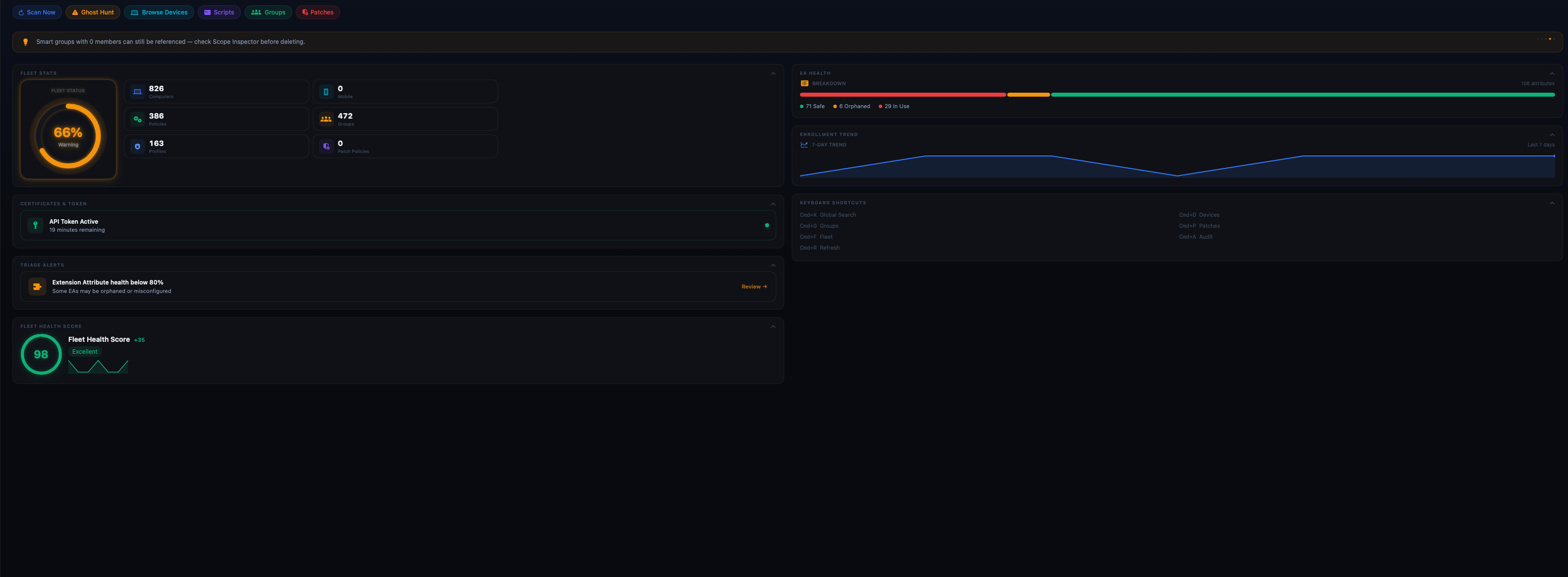
The top row of the Dashboard shows your total computers, mobile devices, policies, and patch titles enrolled in your Jamf instance. These counts update each time you refresh or re-open Nexus.
Fleet Status Ring
A visual ring shows your Fleet Health Score (0–100). Color coding:
- Green (80–100): Fleet is healthy
- Yellow (60–79): Some items need attention
- Red (0–59): Critical issues present
EA Health Bar
A horizontal bar shows the distribution of your Extension Attributes:
- Safe (green): EA has no issues, referenced correctly
- Orphaned (orange): EA exists but is not referenced anywhere
- In Use (blue): EA is actively used by policies or groups
Enrollment Trend
A 7-day sparkline shows device check-in trends. Useful for spotting enrollment drops, post-upgrade regressions, or unexpected device loss.
Certificates & Token
Shows your API token status and expiry. Nexus automatically refreshes tokens before they expire so your session never drops mid-scan.
Triage Alerts
Proactive alerts surface items needing attention — EA health drops, certificate expiry warnings, and stale device counts. Each alert links directly to the relevant tool.
Fleet Health Score
A 0–100 score summarizing overall fleet cleanliness. A score of 98 is excellent. Click the ring to see a full breakdown of what is contributing to your score and step-by-step guidance to reach 100.
Keyboard Shortcuts (shown on Dashboard)
| Shortcut | Action |
|---|---|
Cmd+K | Global Search |
Cmd+G | Go to Groups |
Cmd+F | Go to Fleet Commander |
Cmd+A | Run Audit (Ghost Hunter) |
Cmd+R | Refresh |
Cmd+0 | Devices |
Cmd+P | Patches |