Script Library
Browse, search, and edit your entire Jamf script library without leaving Nexus.
Browsing Scripts
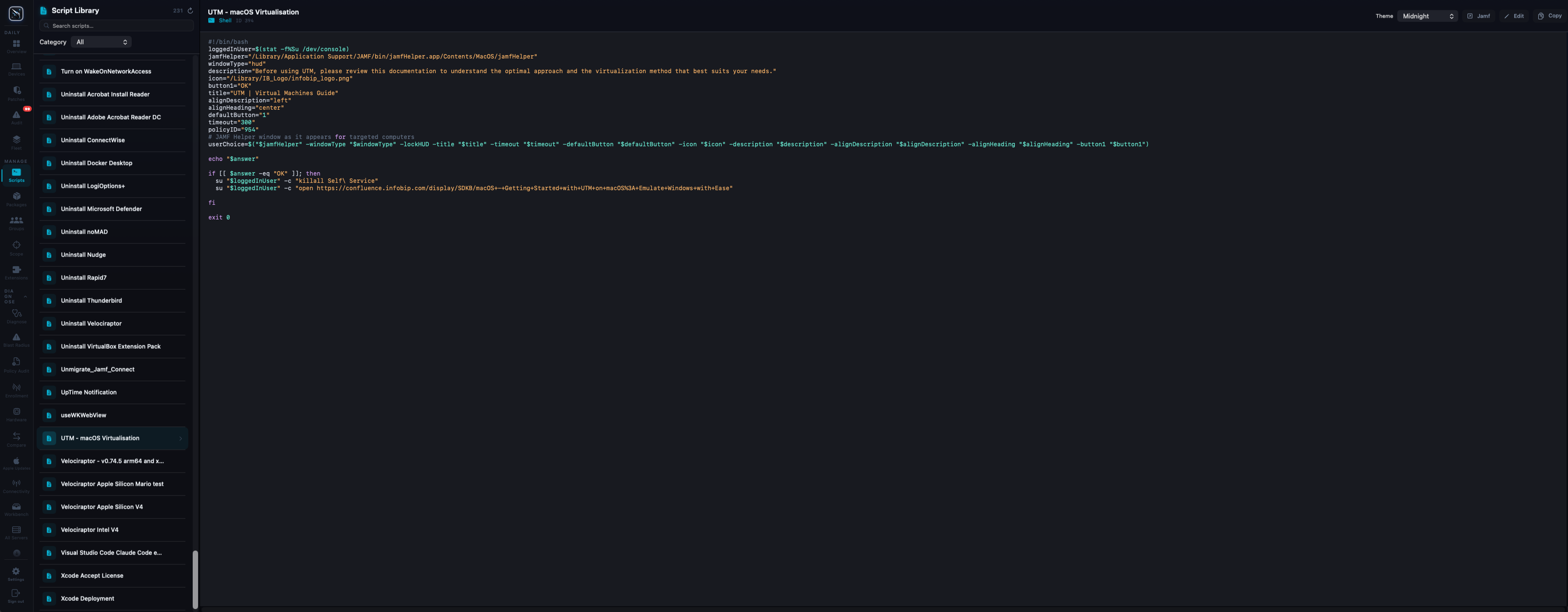
All scripts load from your Jamf server when you first open the Script Library. Scripts are listed in the left panel, sorted alphabetically. Click any script to view its full content in the right panel with syntax highlighting.
Searching
Use the search bar at the top of the script list to filter by name. Results update in real time as you type. The search is case-insensitive and matches any part of the script name.
Syntax Themes
Four syntax themes are available from the dropdown in the top-right corner of the editor:
- Midnight (default) — dark blue, high contrast
- Monokai — classic dark theme
- GitHub — light theme
- Solarized — warm dark theme
Editing Scripts
- Open a script from the list panel
- The editor becomes active — click anywhere in the code area to start editing
- Make your changes using the full-featured code editor
- Click Save to push changes directly back to Jamf Pro
- A confirmation toast confirms the save was successful
Categories
Filter scripts by category using the Category dropdown at the top of the script list. This is useful in large environments with hundreds of scripts organized by department or function.