Ghost Hunter
Ghost Hunter automatically audits your Jamf instance for orphaned, wasteful, and stale objects — surfacing issues with direct links to fix them in Jamf Pro. Run it after any major cleanup, before a Jamf Pro upgrade, or as a periodic hygiene check.

How to Run Ghost Hunter
- Click Ghost Hunter in the sidebar
- Configure your stale device threshold (30, 60, or 90 days — see below)
- Click Start Audit — Nexus scans all object types in parallel using concurrent API requests
- A live progress indicator shows which categories have completed
- Results appear as each category finishes — you don't have to wait for the full scan to complete
Ghost Hunter scans policies, scripts, devices, config profiles, smart groups, and EAs simultaneously. Large environments (1,000+ devices, 300+ policies) typically complete in 30–60 seconds.
Audit Categories
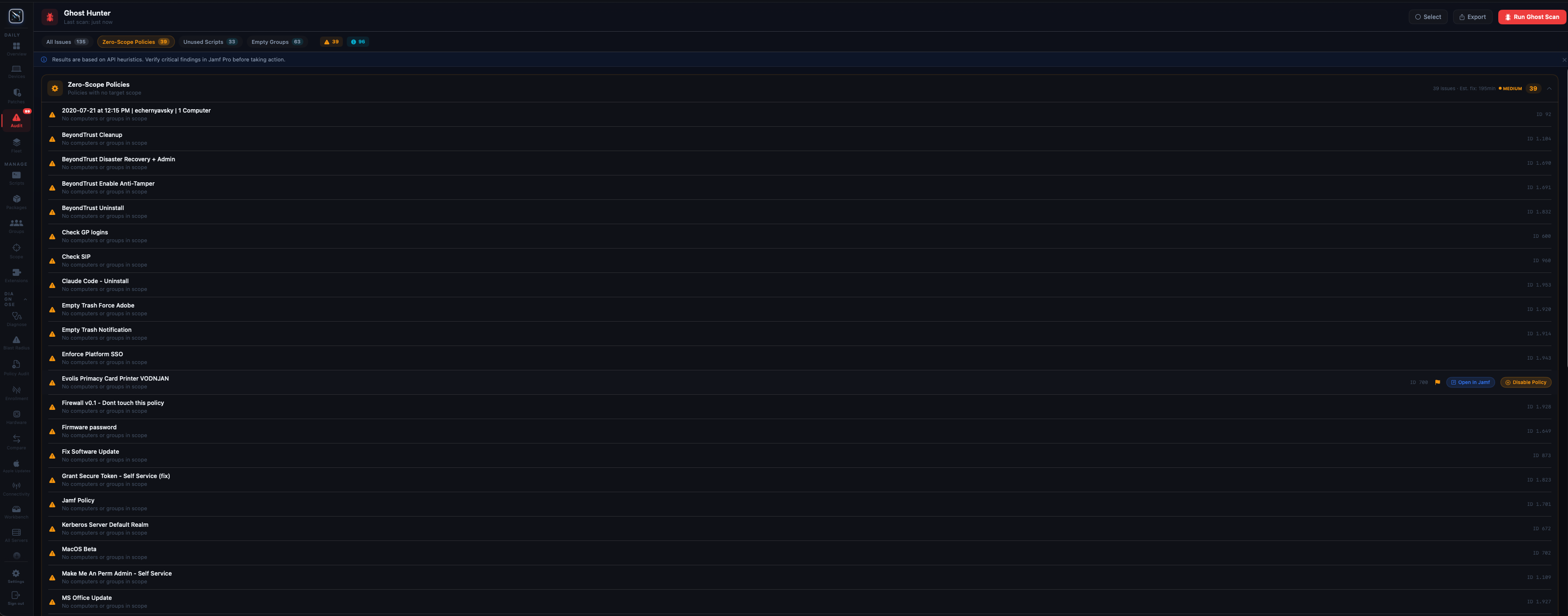
Zero-Scope Policies
Policies with an empty scope target no devices. They are processed by the Jamf framework on every device check-in — evaluating triggers, frequency rules, and criteria — even though they never run. In large environments with hundreds of policies, zero-scope policies add measurable check-in overhead. Ghost Hunter flags every policy with no scope targets so you can disable or delete them.
A policy is flagged if it has no computers, no smart groups, no static groups, and no device-specific inclusions in its scope. Exclusions are ignored — a policy with only exclusions and no inclusions counts as zero-scope.
Stale Devices
Devices that haven't checked in within your configured threshold are likely decommissioned, off-network, or enrolled but abandoned. Ghost Hunter surfaces these so you can investigate before removing them from Jamf.
Configurable thresholds: You can set the stale cutoff to 30, 60, or 90 days before running the audit. The threshold is displayed in the results header so it's clear what “stale” means for that run.
- 30 days — aggressive; appropriate for orgs with daily check-in requirements or frequent device rotation
- 60 days — balanced; catches devices that have missed multiple update cycles
- 90 days — conservative; appropriate for environments where extended leave or remote workers may go offline for weeks
Results show each device's name, serial number, last check-in date, and assigned user — giving you enough context to decide whether to remove or investigate further.
Duplicate Computer Names
Multiple enrolled devices with the same computer name. This commonly happens after imaging without proper pre-stage enrollment configuration, or when a device is re-enrolled without being unmanaged first. Duplicate names cause confusion in smart groups, make log analysis harder, and can cause policy targeting issues if policies scope by name.
Ghost Hunter groups duplicates together so you can see all devices sharing a given name and compare serial numbers and last check-in dates to identify which record is stale.
Orphaned Configuration Profiles
Configuration profiles with no scope — they are deployed to no devices but remain active in Jamf Pro. Like zero-scope policies, these add noise to your environment and waste API processing. A profile is considered orphaned if it has no computers, no groups, and no mobile devices in its scope.
Note that “orphaned” here means unscoped, not that the profile is broken. Always verify whether a profile was intentionally left unscoped (e.g., as a template) before deleting.
Empty Smart Groups
Smart groups with zero current members. Empty groups can still be referenced in policy and profile scopes — if a policy scopes to an empty group, it deploys to no one (and the policy may also be flagged as zero-scope). Ghost Hunter identifies these groups so you can determine whether to update their criteria or remove them from scope.
Ghost Hunter distinguishes between groups that are empty due to criteria returning no results vs. groups with no criteria defined at all — the latter are flagged more prominently as likely accidents.
Unused Scripts
Scripts that exist in Jamf Pro but are not referenced by any policy. These are safe cleanup candidates — a script that no policy calls will never run on any device. Ghost Hunter shows each script's name, category, and last modified date so you can decide whether it's a legitimate library item (e.g., a utility script used manually) or true dead weight.
Unused Extension Attributes
Extension Attributes that are not referenced by any smart group, policy scope criteria, or configuration profile criteria. Unused EAs still run their data collection scripts on every enrolled device at every inventory update — silently consuming CPU time and network bandwidth at scale.
Ghost Hunter cross-references the full EA list against all 9 Jamf object types that can reference EAs. An EA is only flagged as unused if it has zero references across all of them. This is the same analysis performed by the EA Dependency Scanner, surfaced here as part of the full audit.
Results Table
Each audit category renders its own results table. Common columns across all categories:
- Name — display name of the flagged object
- Type — the Jamf object type (Policy, Script, Device, etc.)
- Details — additional context specific to the category (e.g., last check-in for stale devices, policy count for unused scripts)
- Reviewed — a toggle to mark an item as intentionally kept (dismissed items persist across relaunches)
- Open in Jamf — direct link to the object in your Jamf Pro web console
The results header for each category shows a count of total issues found and how many have been reviewed/dismissed.
Acting on Results
Open in Jamf Pro
Every flagged item has an Open in Jamf button that deep-links directly to that object in your Jamf Pro web console. This opens in your default browser — you don't need to navigate there manually.
Run Blast Radius First
Before deleting any flagged object — especially policies, smart groups, or EAs — run it through the Blast Radius Analyzer first. Even objects that appear unused may be referenced in ways Ghost Hunter cannot detect (e.g., a smart group that's scoped but currently empty due to criteria mismatch, not because no one uses it).
Dismiss False Positives
Use the Mark as Reviewed toggle on any item you want to keep. Dismissed items are hidden from the default results view but can be revealed with the Show Reviewed toggle. Dismissals are stored locally and persist across app relaunches.
Export Results
Export the full Ghost Hunter report — or individual category results — to CSV, JSON, or HTML using the export button at the top right of the results view. HTML export generates a formatted report suitable for sharing with management or including in a change control ticket.
Performance
Ghost Hunter uses concurrent API requests to scan all categories simultaneously. Categories that complete faster (e.g., scripts, EAs) display results immediately while slower categories (e.g., all-device check-in analysis) continue in the background. Progress is shown per category with a completion indicator.
In environments with 1,000+ devices and 300+ policies, expect a full scan to complete in 30–90 seconds depending on Jamf Pro server response times. Cloud-hosted Jamf instances (jamfcloud.com) are typically faster than self-hosted instances under load.